Tools Overview
Tools extend the capabilities of your assistant by allowing it to perform specific actions and interact with the outside world.
Whether it is booking a calendar appointment, sending an SMS, or transferring a live call to a human operator, tools are what bridge the gap between conversation and action.
Managing Tools
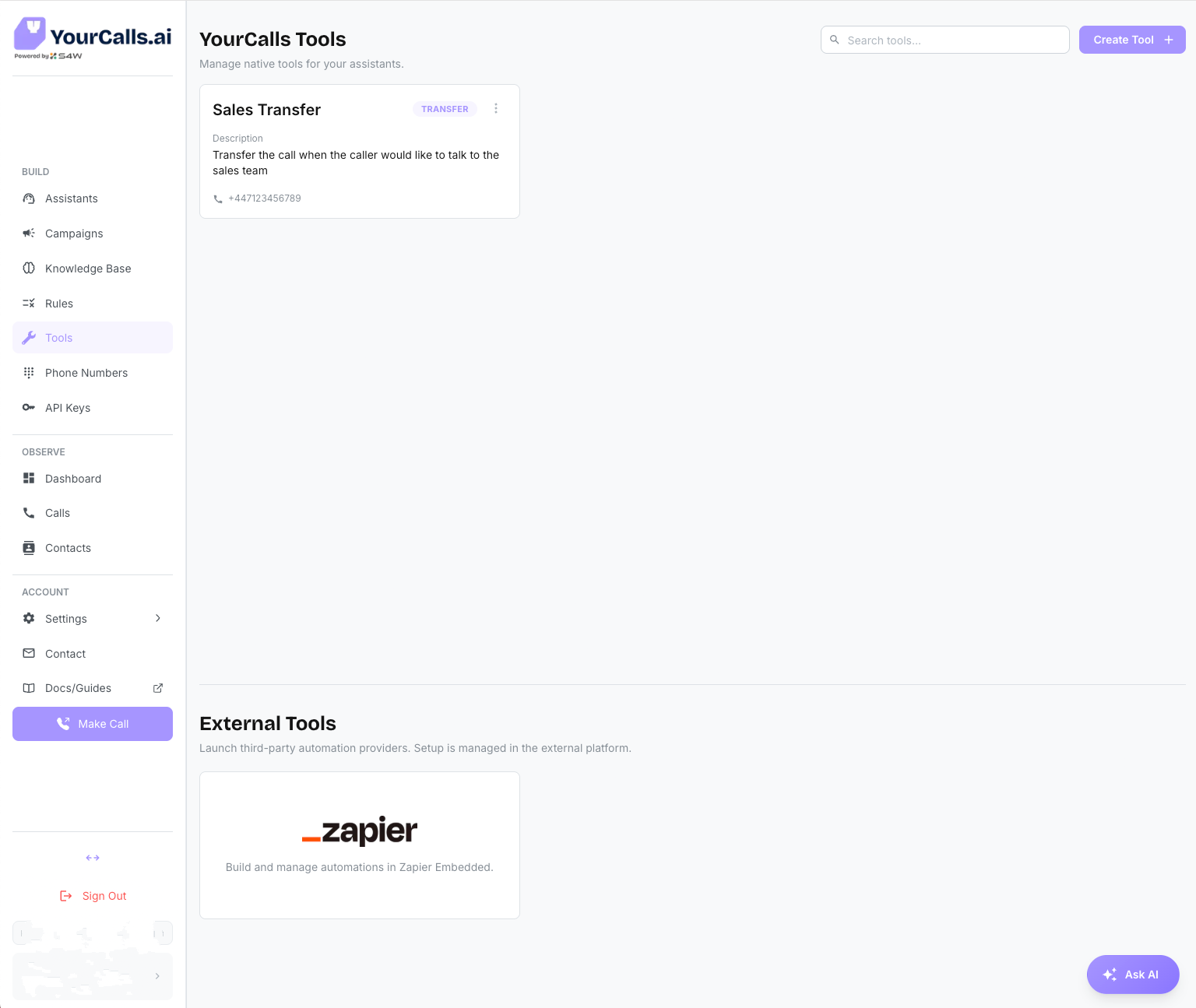
The Tools page shows all tools configured for your company. From here you can:
- Create new tools.
- Edit or delete existing tools.
- See which assistants each tool is assigned to.
Tools page layout
The Tools page is split into two sections:
- YourCalls Tools (top): tools you create/manage directly in YourCalls.
- External Tools (bottom): embedded external automation platforms, currently Zapier.
YourCalls Tools
Click Create Tool in the YourCalls Tools section to create:
1. Premade Tools
Choose from a library of ready-to-use tools built and maintained directly by YourCalls.
- Best for: Standard, widely-used actions where you don't want to write or maintain any custom logic.
- Common Use Case (Transfer Call): The most frequently used premade tool is Transfer Call. Use this to hand off a qualified lead to your sales team, or escalate angry customers to a human support agent. You simply provide the target phone number and choose the transfer mode (Blind, Warm, or Warm + Summary).
2. Custom Tools
Build custom actions that send call information to your own systems (for example: a CRM, automation platform, or internal app).
- Best for: Teams with custom workflows (save notes to CRM, create tickets, alert staff, etc.).
- How it works (plain English): You tell YourCalls what information to collect and where to send it. YourCalls then sends that information to your destination URL.
External Tools
Zapier (Embedded)
A no-code integration platform connecting YourCalls to over 7,000+ external applications.
- Where to find it: Tools -> External Tools -> Zapier.
- How it works: Opens Zapier Embedded directly inside the YourCalls dashboard so you can create and manage workflows without leaving YourCalls.
- See guide: For setup and a HubSpot -> YourCalls workflow example, see Zapier Integration.
Plain-English Terms
- Request URL: The web address where YourCalls should send data (e.g. Zapier Webhook Catch Hook).
- Method: The action type (
POST,PUT,PATCH,GET).POST: "Create a new record" or "send new event data".PUT: "Replace the full existing record" with new data.PATCH: "Update part of an existing record" (small changes only).GET: "Fetch/read information" without creating or editing anything.
- Headers: Extra security details (for example API keys) your destination may require.
- Body Fields: The actual information being sent (for example summary, transcript, customer number).
- Variable: A data value, written in double braces, such as
{{contact.first_name}}or{{call.summary}}. See Variables for every name you can use. - Test Now: Sends a safe test using sample data so you can confirm setup before going live.
Variables in the Request URL
A variable can be used in the path or the query of a Request URL, and nowhere else in it.
https://api.example.com/customers/{{contact.id}}works.https://api.example.com/customers?id={{contact.id}}works.https://{{vars.region}}.example.com/customersdoes not, because the variable would decide where your data is sent.
The address itself is fixed. A tool with a variable in its address cannot be saved, and a tool already set up that way stops running until you correct it. The address must also be a full https:// address before it can carry a variable anywhere. Values that go into the path and the query are escaped for you, so a value containing a / or a ? cannot re-point the request.
Tool Execution Phases (Custom Tools)
When building Custom Tools, you choose when the action should run:
- Before Call Tool: Runs right before the call workflow starts.
- During Call Tool: Runs while the caller is still on the line.
- After Call Tool: Runs after the call has ended.
Quick Comparison
- Before Call: Good for setup and pre-notifications. No caller-facing message needed.
- During Call: Good when the assistant needs live data mid-conversation.
- After Call: Good for CRM updates, summaries, and follow-up automations.
Filling Out the Tool Configuration Form
Once you have selected a path (like Premade Tools or Custom Tools), you will be presented with the tool configuration form.
For Premade Tools (e.g., Transfer Call)
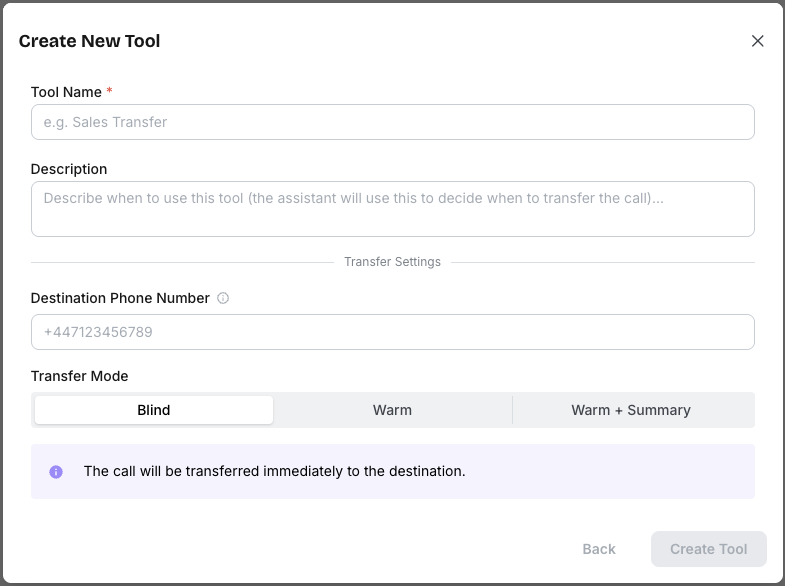
- Tool Name: Give your tool a clear name (e.g.,
TransferToSales). - Tool Description: Explain to the AI when to use this tool (e.g., "Use this tool to transfer the call to the sales team if the user is interested in buying the product").
- Configuration: Enter the target Phone number and select a Transfer mode (Blind, Warm, or Warm + Summary).
- Blind: A straight call transfer with no check if the person you are transferring to is available.
- Warm: The assistant will wait for the operator to answer before connecting the caller.
- Warm + Summary: The assistant will wait for the operator, then provide a summary of the call before connecting the caller.
For Custom Tools: Before Call
Before Call tools run before the assistant proceeds with the call. This is where you can enrich the assistant with extra context, validate a caller, or block a call when needed.
Example from the builder:
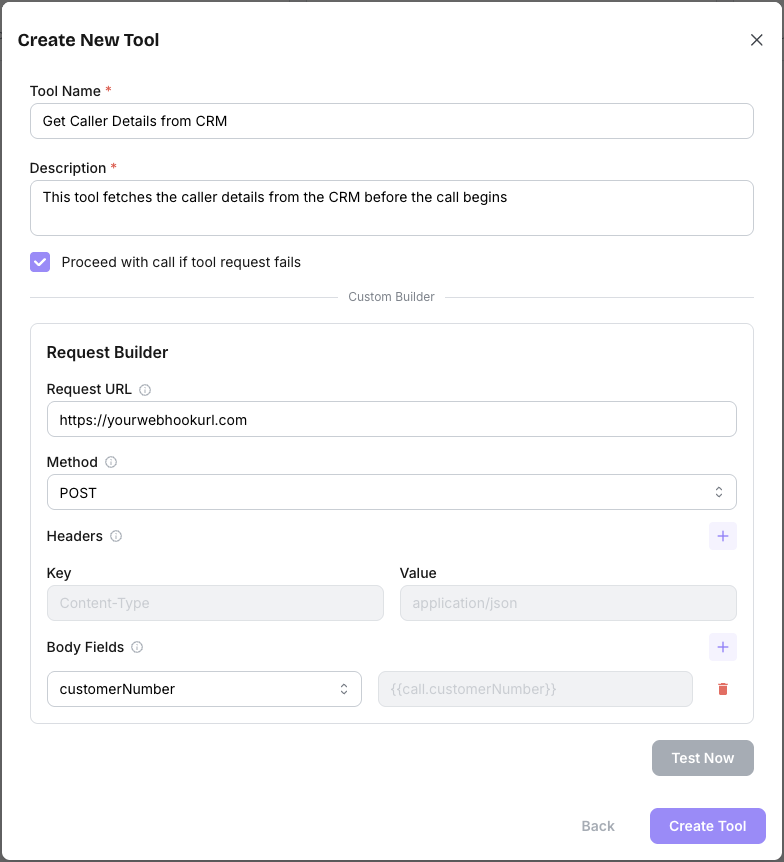
In this example, the tool name is Get Caller Details from CRM, and it sends customerNumber to your CRM endpoint before the call continues.
Step-by-step setup:
- Tool Name: Use a clear action-focused name, for example
Get Caller Details from CRM. - Tool Description: Describe what this tool does and why it runs before call start.
- Proceed with call if tool request fails:
- Enabled = fail-open (call can continue if your endpoint fails technically).
- Disabled = fail-closed (call is blocked on technical failure).
- Request URL: Add your webhook endpoint (for example your Zapier Catch Hook or Make.com Webhook Receiver).
- Method: Use
POSTfor most integrations (recommended). - Headers: Add any auth headers your endpoint requires.
- Body Fields: Map fields such as:
customerNumber: {{call.customer_phone}}callRequestId: {{call.call_request_id}}campaignId: {{call.campaign_id}}(when relevant)
The name on the left is the key your endpoint receives, so you can call it whatever suits your system. The name in braces on the right is the YourCalls variable, and those names are fixed. See Variables for the full list.
Example payload YourCalls sends to your webhook:
{
  "customerNumber": "+447123456789",
  "callRequestId": "xxxxxxxx-xxxx-xxxx-xxxx-xxxxxxxxxxxx",
  "toolRunId": "xxxxxxxx-xxxx-xxxx-xxxx-xxxxxxxxxxxx",
  "assistantId": "xxxxxxxx-xxxx-xxxx-xxxx-xxxxxxxxxxxx",
  "beforeCallResponse": {
    "requestId": "xxxxxxxx-xxxx-xxxx-xxxx-xxxxxxxxxxxx",
    "token": "xxxxxxxxxxxxxxxxxxxxxxxxxxxxxxxxxxxxxxxxxxxxxxxx",
    "expiresAt": "2026-03-10T10:31:11.294Z",
    "timeoutMs": 10000,
    "responderUrl": "https://our.responder.url/"
  }
}
toolRunId, assistantId, beforeCallResponse and duringCallResponse are added by YourCalls on every request, so you do not map them yourself. assistantId tells you which assistant fired the tool, which matters when the same tool is attached to several. A body field of your own cannot use one of these names, and a tool that tries will not save.
What your endpoint can return directly (sync):
{
  "answer": true,
  "assistantVariables": {
    "customer_tier": "Golden",
    "crm_owner": "Sarah"
  }
}
Anything you return in assistantVariables becomes a variable named vars.<name>, so the example above gives the assistant {{vars.customer_tier}} and {{vars.crm_owner}}. Names must be lower case with underscores. A name such as customerTier cannot be written as a variable at all, so the value would arrive and never be readable.
To block the call:
{
  "answer": false,
  "reason": "Nuisance number flagged"
}
Deferred response option (async):
- If your system cannot return full data immediately (for example Zapier Catch Hooks), it can call a HTTP
POSTrequest the providedresponderUrlafter you have fetched the relevant data for the call. - Send your YourCalls API key in the
Authorization(orx-api-key) Header and include therequestIdandtokenthat YourCalls sent inbeforeCallResponse.
{
  "requestId": "uuid",
  "token": "unique-timebased-token",
  "answer": true,
  "assistantVariables": {
    "customer_tier": "Golden"
  }
}
For Custom Tools: During Call
During Call tools run while the caller is still speaking to the assistant. This is ideal when the assistant needs live data before it can continue naturally.
Example from the builder:
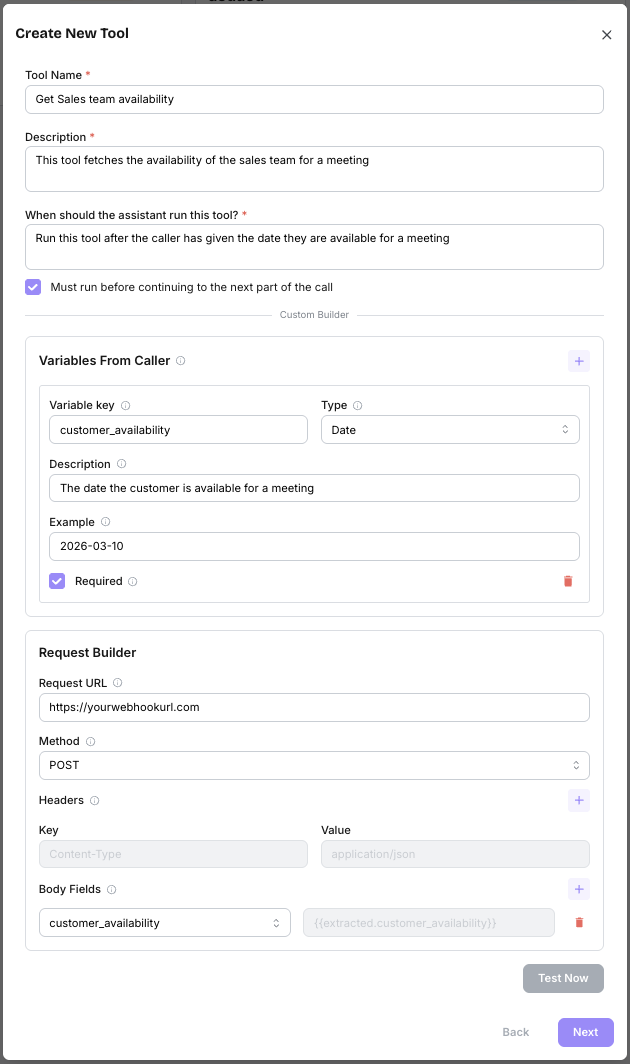
In this example, the tool is Get Sales team availability. It collects customer_availability from the caller in YYYY-MM-DD format and sends it to your endpoint.
Step-by-step setup:
- Tool Name: Use a clear name, for example
Get Sales team availability. - Tool Description: Explain what the tool returns to support the call.
- When should the assistant run this tool?: Tell the assistant exactly when to trigger it.
- Must run before continuing: Keep this enabled so the assistant waits for this lookup before moving on.
- Variables From Caller: Add required fields. In this example:
customer_availability(typeDate)- expected format:
YYYY-MM-DD(for example2026-03-10)
- Request Builder:
- Request URL: Where to send the data.
- Method: Use
POSTfor most integrations (recommended). - Headers: Security fields, if needed.
- Body Fields / Query Params: Map values such as:
customer_availability: {{extracted.customer_availability}}
- Tool Messages: Optional custom messages for:
- Request Start: A message the assistant should say before triggering the tool.
- Request Complete: A message the assistant should say once the tool has successfully returned.
- Request Failed: A message the assistant should say if the tool has failed.
Example payload YourCalls sends to your webhook:
{
  "customer_availability": "2026-03-10",
  "toolRunId": "1b2438f8-7f30-4db6-a2fc-ef6a0234507d",
  "assistantId": "9d0a6f5c-2f7c-4a1e-9a2b-6b5d1c4e8f30",
  "duringCallResponse": {
    "requestId": "97ef962e-a795-4c2f-805e-ea23e7b4ac0c",
    "token": "e5c1729313133cdfdb8b862f8ccaef61b8187136d3e27e75",
    "toolCallId": "tool_call_0001",
    "expiresAt": "2026-03-10T10:31:11.294Z",
    "timeoutMs": 10000,
    "responderUrl": "https://<responder-host>/webhooks/during-call-response"
  }
}
responderUrl is where you post a deferred response back to. Read it from the payload each time rather than hard-coding it, as the host can change.
What your endpoint can return directly (sync):
{
  "result": {
    "salesAvailability": {
      "available": true,
      "date": "2026-03-10",
      "nextSlot": "14:30"
    }
  }
}
Deferred response option (async):
- If your system cannot return the final result immediately, it can call the provided
responderUrlafter processing. - Send your YourCalls API key in
Authorization(orx-api-key) and include therequestIdandtokenfromduringCallResponse.
{
  "requestId": "97ef962e-a795-4c2f-805e-ea23e7b4ac0c",
  "token": "e5c1729313133cdfdb8b862f8ccaef61b8187136d3e27e75",
  "result": {
    "salesAvailability": {
      "available": true,
      "date": "2026-03-10",
      "nextSlot": "14:30"
    }
  }
}
For Custom Tools: After Call
After Call tools run right after the call ends.
Here is an example of a simple CRM update using an After Call Tool:
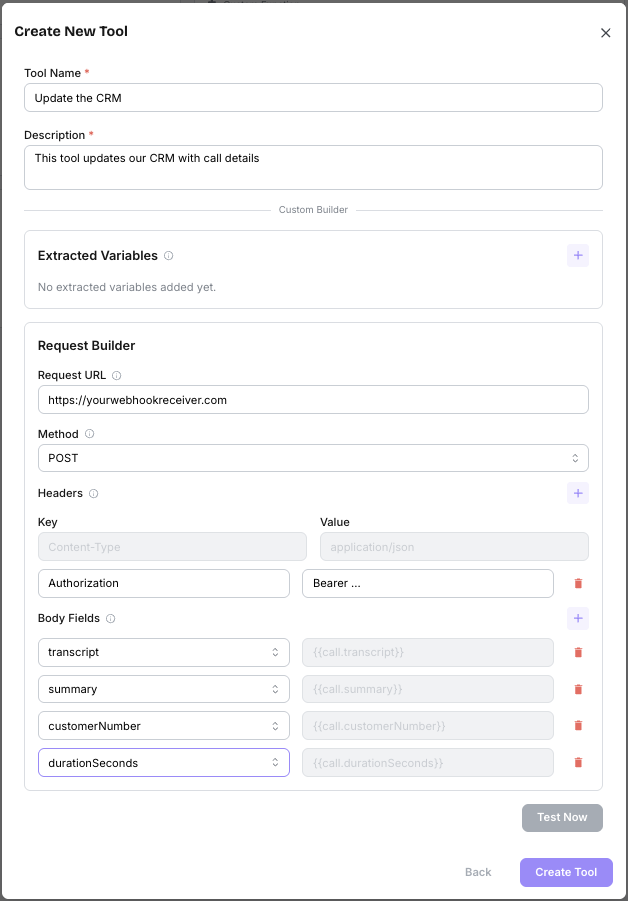
- Best for: CRM updates, notes, follow-up tasks, and post-call summaries.
- Extracted Variables: Ask YourCalls AI to pull specific values from transcript/summary (for example
qualified_lead,next_step,customer_email). This can be especially helpful for extracting dynamic answers from customers. Each one becomes a variable namedextracted.<name>, soqualified_leadis written{{extracted.qualified_lead}}in the request builder. - Request Builder: Send transcript, summary, call metadata, and extracted values to your destination.
What happens:
- Call ends.
- Your configured data is prepared.
- Your endpoint receives it automatically in the background.
Testing and Troubleshooting
Test Now (Recommended every time)
- Uses sample data to send a test request.
- Confirms your URL and auth setup are working.
- Returns status and timing so you can quickly spot issues.
- Lists any variable the test had no value for under Not filled in, with the reason beside it. The request is still sent, so you can see exactly what your endpoint receives when a value is absent.
Common Issues
- Tool did not run: Check required variables are present and endpoint URL is correct.
- Tool will not save, or stopped running after working before: Check the Request URL for a variable in the web address itself. Variables belong in the path or the query only.
- Unauthorized / 401 or 403: Check your auth header value.
- Timeout or network failure: Check your server is publicly reachable and responds quickly.
- Missing values in destination system: Check body field mappings and variable names. A variable with no value is sent as an empty string, so an empty field usually means the name is misspelt or the value does not exist at that phase. Run Test Now and read the body your endpoint receives to see which mapping came up empty. The Variables page lists every name and when it is available.
- Before-call response fields missing: Use
POST,PUT, orPATCHif you need body data (such asbeforeCallResponse.requestIdandtoken).GETrequests do not send a body.