Creating Campaigns
Campaigns allow you to make outbound calls to a list of contacts using an assistant.
You can view and manage campaigns from the dashboard at /client/campaigns.
The Campaigns Dashboard
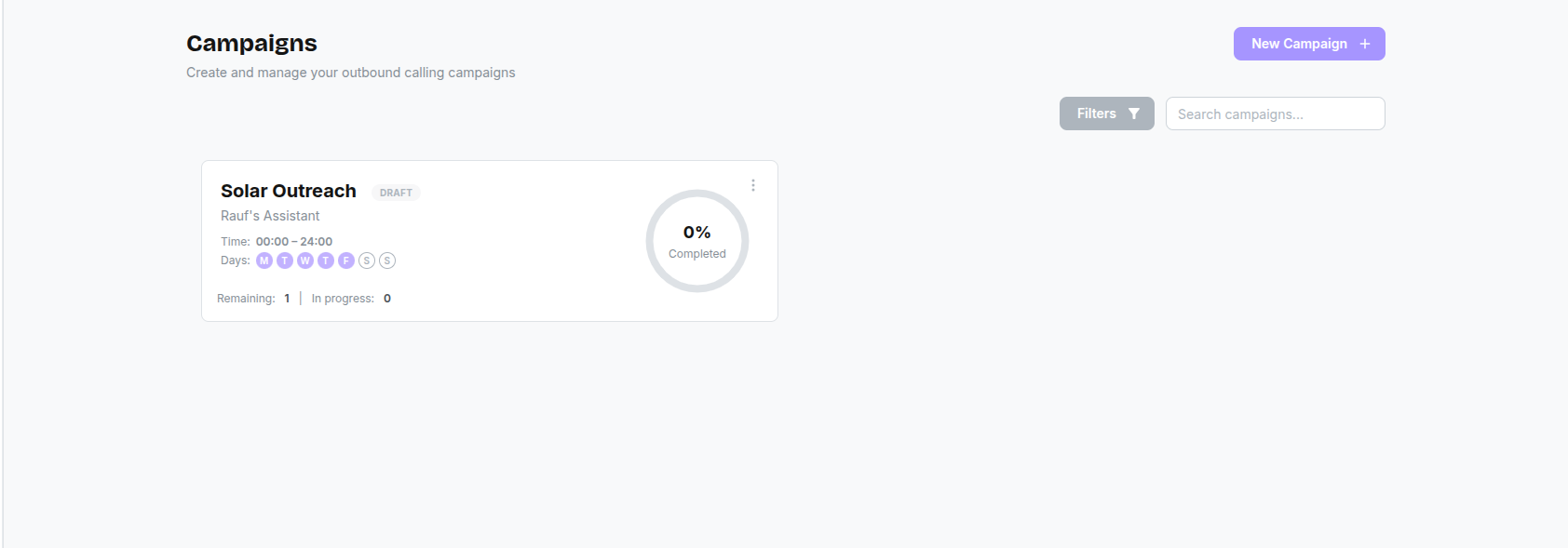
The dashboard allows you to manage all your outbound campaigns.
- Traffic Lights: Each campaign card shows a "traffic light" status of calls (Green/Yellow/Red/Grey) to give you a quick health check.
- Filtering: You can filter by Name, Assistant, Status, Time, and Days.
Launching a Campaign
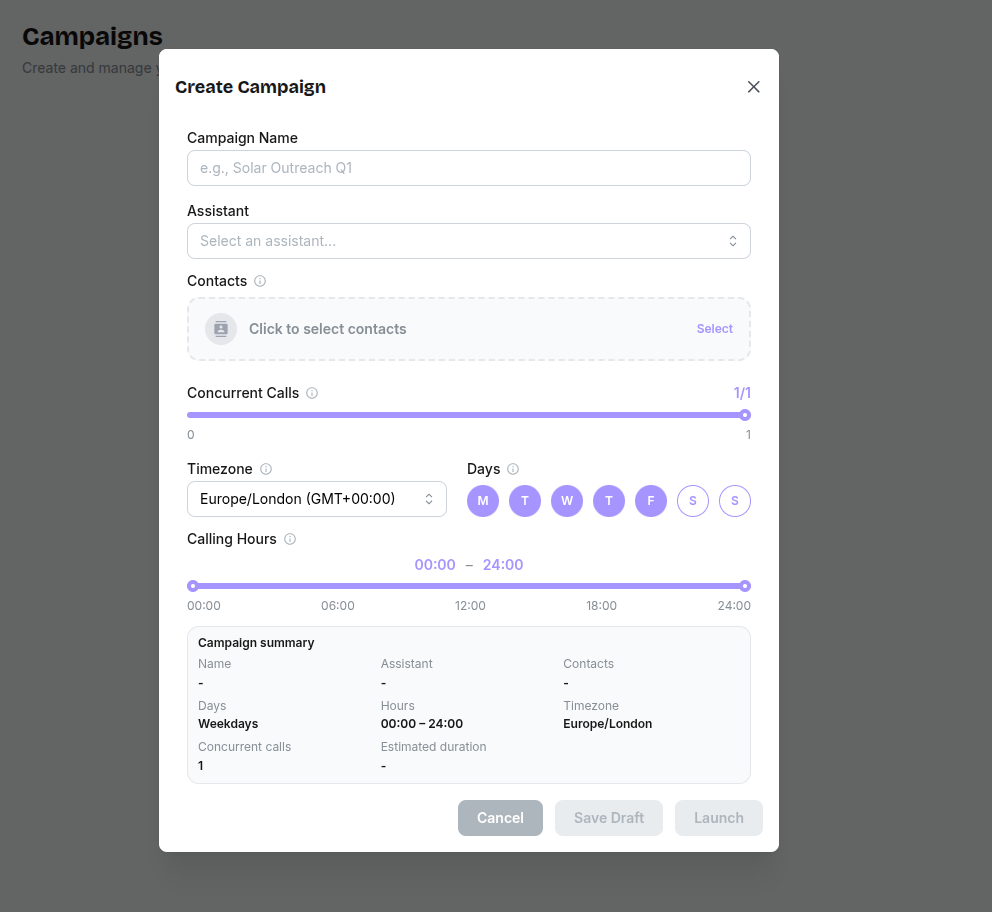
- Click the + New Campaign button.
- Fill in the Basics section:
- Campaign Name: A clear, unique name for this campaign (for example,
Solar Outreach Q1). - Assistant: The voice assistant that will make the calls.
- Contacts: The contacts this campaign will call. Use Select to pick from your uploaded contacts.
- Campaign Name: A clear, unique name for this campaign (for example,
- Configure Concurrent Calls:
- This sets the maximum number of calls the campaign is allowed to run in parallel.
- For example, if it is set to 1, the campaign will only have one active call at any given time.
- Set Timezone and Days:
- Timezone: The local time zone to use for scheduling (for example,
Europe/London (GMT+00:00)). - Days: Which days calls are allowed to run (for example,
Weekdays).
- Timezone: The local time zone to use for scheduling (for example,
- Configure Calling Hours:
- Set the start and end time window for calls (for example,
00:00 – 24:00for all day, or a narrower window).
- Set the start and end time window for calls (for example,
- Review the Campaign summary:
- Shows the final values for Name, Assistant, Contacts, Days, Hours, Timezone, Concurrent calls and Estimated duration.
- Click Create to save the campaign. Once created, click the Start (Play) button on the campaign card to begin dialing.
Monitoring & Actions
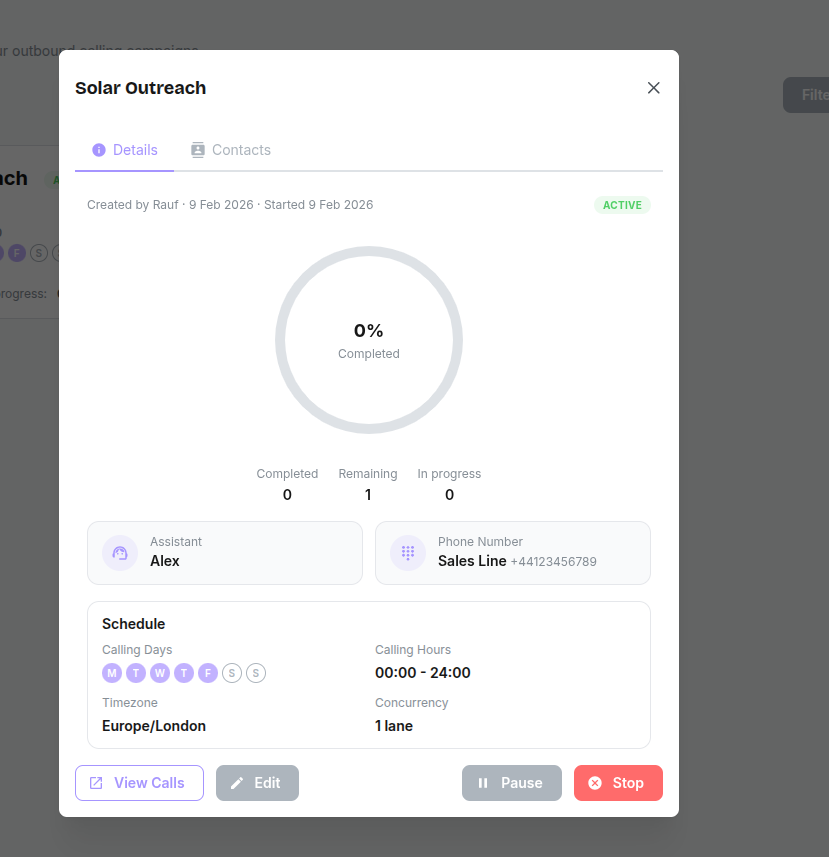
- Pause/Resume: You can pause a campaign at any time.
- Duplicate: Clone an existing campaign to quickly start a new one with similar settings.
- Details: Click on a campaign card to view detailed metrics and progress.