Managing Assistants
Assistants are your AI agents that handle calls. They can be configured for Inbound (receiving calls) or Outbound (making calls).
You can manage assistants from the dashboard at /client/assistants.
The Assistants Dashboard
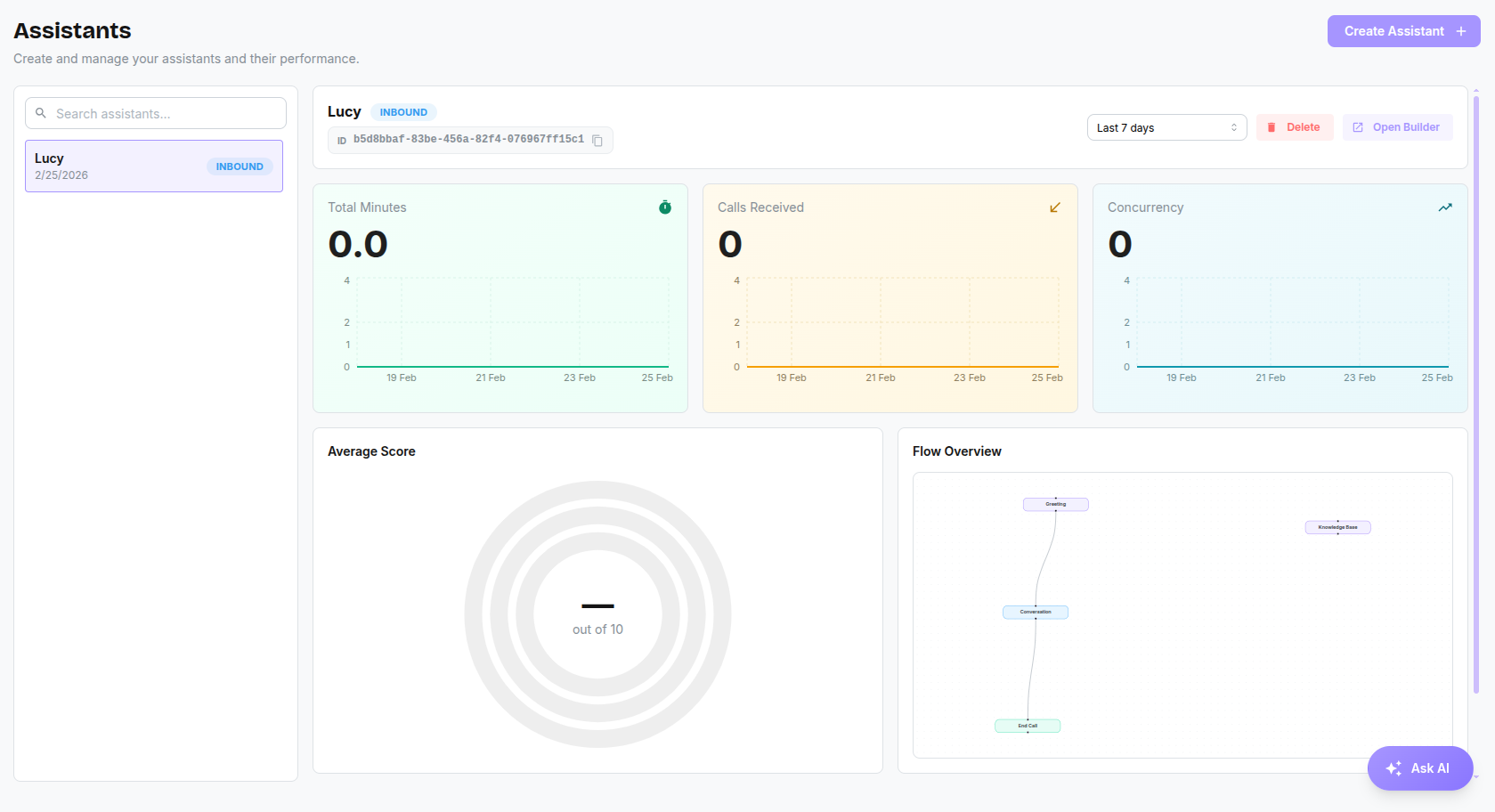
The dashboard provides a complete overview of your assistants and their performance.
1. The Assistant List
On the left side of the dashboard, you will find a searchable list of all your assistants.
- Search: Quickly find an assistant by name.
- Direction Badges: Each assistant clearly indicates whether it is for Inbound or Outbound calls.
- Selection: Click on any assistant to view its detailed analytics and configuration options in the main panel.
2. Assistant Details & Management
When you select an assistant, the main panel displays its core details:
- Title & ID: The assistant's name and a quick-copy button for its unique ID.
- Time Window: Filter the analytics displayed below by All time, Last 30 days, Last 7 days, or Today.
- Delete Assistant: Permanently remove the assistant and its configuration.
- Open Builder: Launch the Visual Assistant Builder to edit the flow.
Building an Assistant (Visual Flow Builder)
Click the Assistant button on the Assistants page to create a new assistant.
YourCalls now features a powerful Visual Assistant Builder, a node-based canvas where you can design complex conversational flows using drag-and-drop elements.
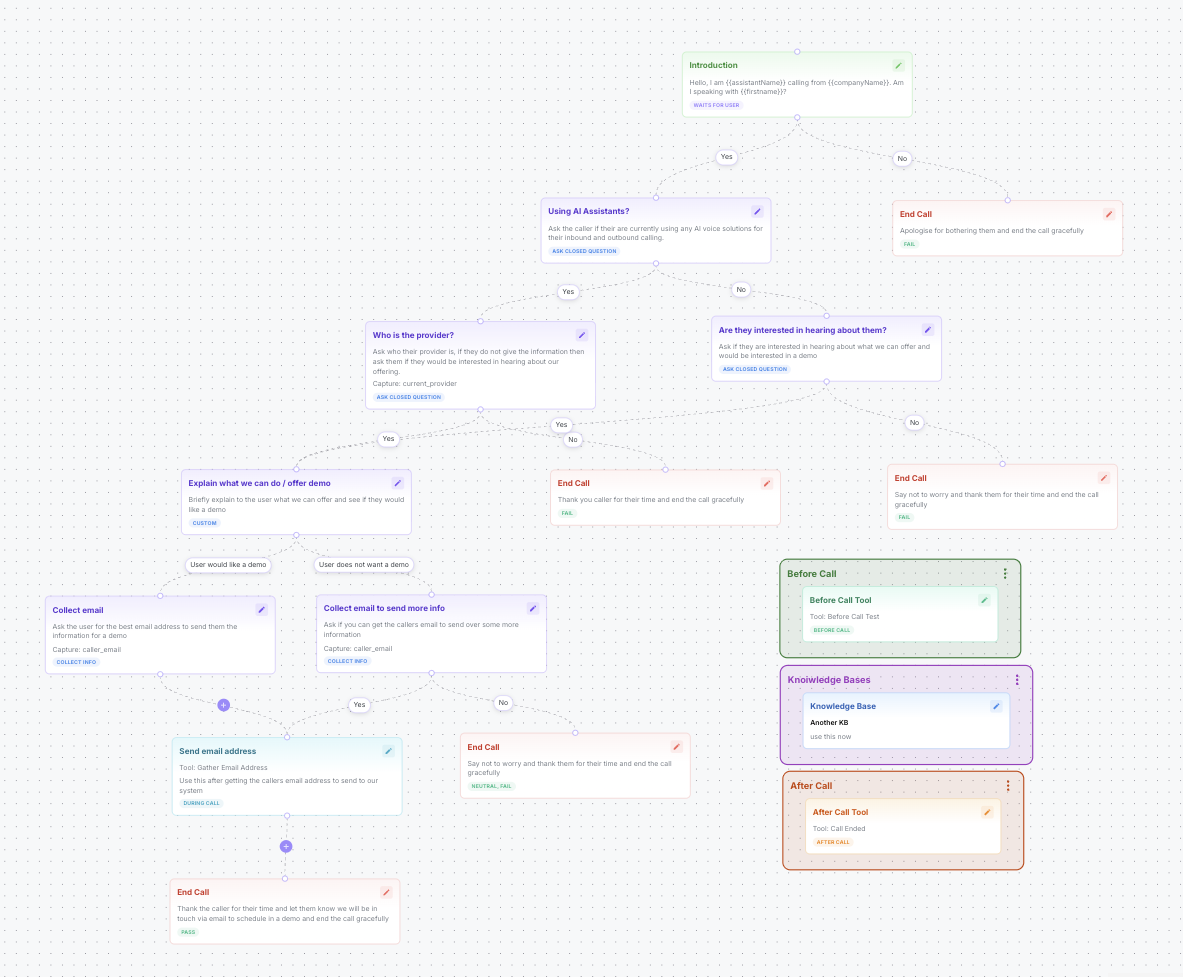
The Builder Canvas
The main view is the Canvas. Here you add Nodes (representing actions or conversational turns) and connect them with Edges (representing conditions or user responses).
1. The Context Panel
On the left side of the builder, the Context panel allows you to configure the overarching personality and background of your assistant:
- Assistant Name: The internal name used for reporting.
- Company Background: Who you are and what the business does.
- Purpose: The overall goal of the assistant on this call (e.g., book a demo, handle support).
- Personality: Instructions for the AI's tone (e.g., "Warm, concise, professional").
- Voice: Choose the AI's speaking voice (Preview available before saving).
- Pass/Fail Metrics: Definitions of what constitutes a successful call vs a failed call.
2. Available Node Types
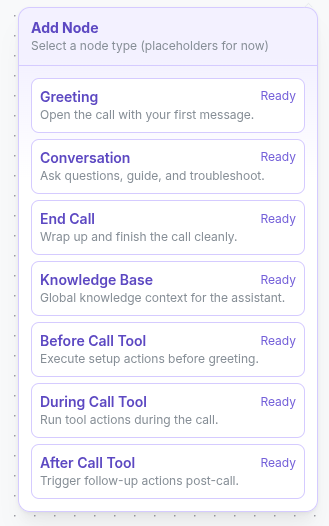
Right-click anywhere on the canvas or use the toolbar to add nodes. Each node gives the AI new capabilities:
- Greeting Node: The entry point of an Inbound call. Defines the first sentence the AI speaks.
- Conversation Node: Defines a specific topic or step in the flow. Here you instruct the AI what to say or ask, and you can define variables (like
first_nameorcompany_size) you expect to capture at this stage. A value captured here is read as{{extracted.first_name}}in a tool or a workflow, not in a prompt, and it is not the same as{{contact.first_name}}, the value YourCalls already held before the call. See Variables. - Tools: Connect your Assistant to external actions. Use tools when your Assistant needs to update another system or fetch data.
- Before Call Tool: Runs at call start for setup or notifications.
- During Call Tool: Runs during the live conversation when the assistant needs information right now.
- After Call Tool: Runs after the call ends for follow-up automations (for example CRM updates).
- Knowledge Base Node: Connects a specific turn in the conversation to a curated Knowledge Base. Use this when the AI needs factual data (like pricing, return policies, or business hours) that might change, so the AI doesn't hallucinate answers.
- End Call Node: The terminal point. Specifies the closing statement before the AI hangs up.
- Group Node: Visual containers to help you organize complex flows (e.g., grouping all "Qualification" nodes together).
3. Edges (Conditions)
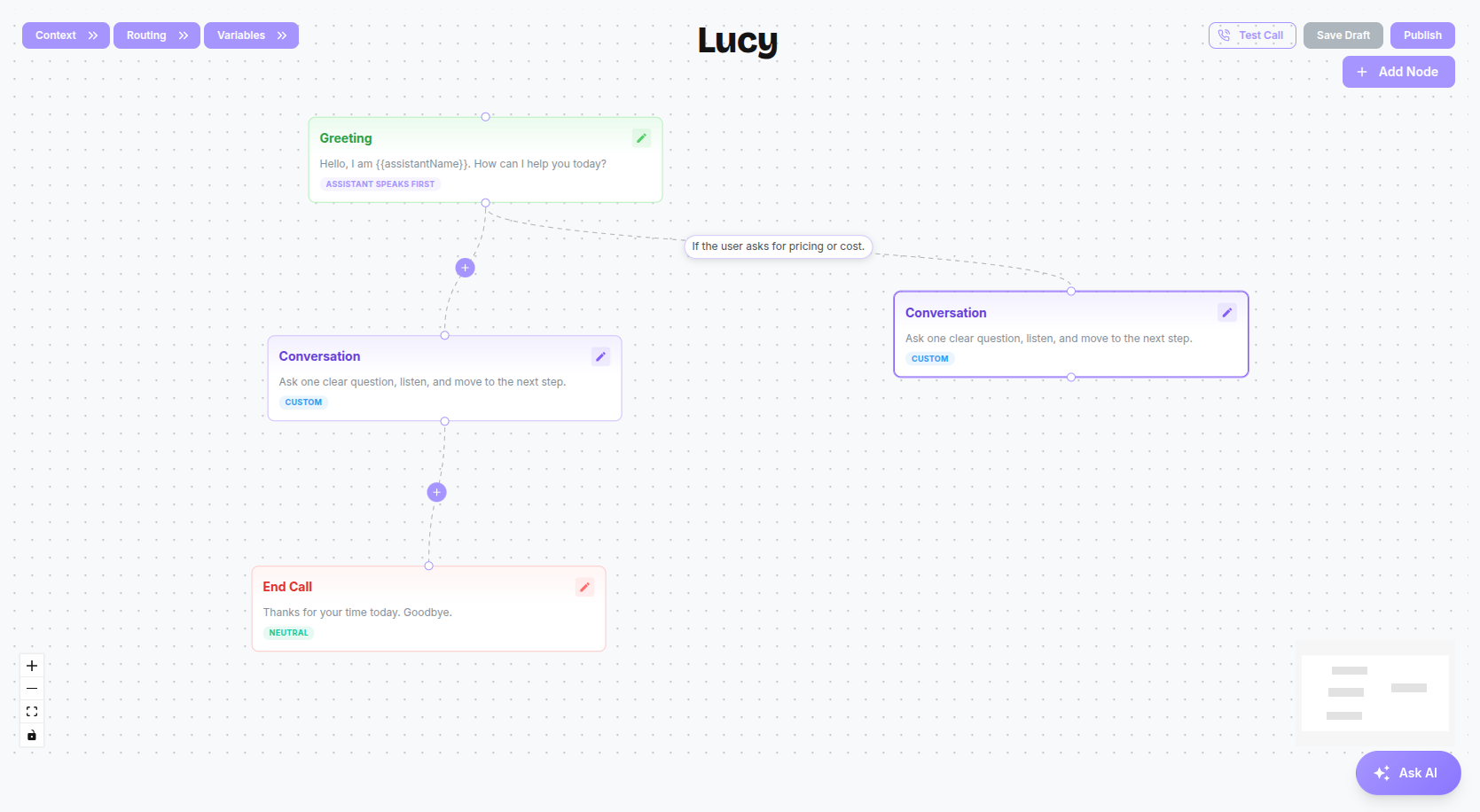
Connect two nodes to add a condition by clicking and dragging from the bottom of one node to the top of another.
- Condition Text: Click an edge to add a condition. The AI evaluates the caller's last response against these conditions to decide where to route the conversation next. Keep conditions simple and intent-based.
Examples of what to write in Condition Text:
- "If the user asks for pricing or cost." -> (Connects to a Pricing Conversation Node)
- "If the user says YES to booking a demo." -> (Connects to a booking Tool Node)
- "If the user is not interested or says NO." -> (Connects to the End Call Node)
4. Routing & Variables Panels
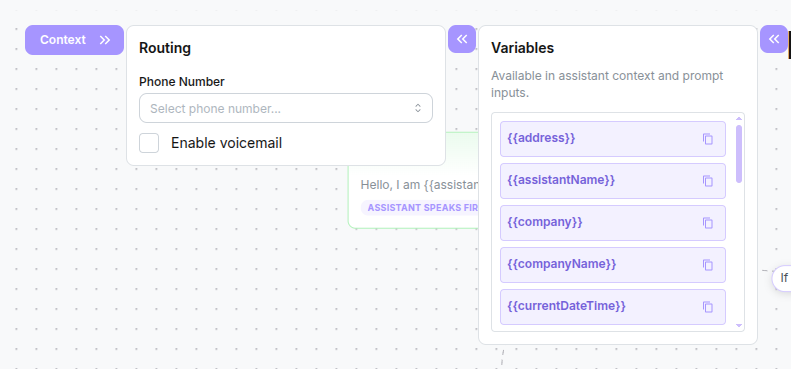
Also on the left side, you can open:
- Routing: Link the assistant to specific phone numbers (Inbound) or configure voicemail actions (Outbound).
- Variables: See every variable this assistant's prompts can use, grouped by what it describes, with a copy button on each. See Variables for the full list.
Validating and Publishing
In the top right corner:
- Errors & Warnings: The builder automatically validates your flow. It will warn you if paths are disconnected, if there is no End node, or if a required variable is never captured.
- Save Draft / Publish: You can save your work as a draft to return to later without deploying it, or Publish to make the latest flow active on all connected phone numbers and campaigns.
Viewing Details & Analytics
Once an assistant is selected, the dashboard presents a comprehensive suite of analytics to monitor its performance against your defined Pass/Fail criteria.
1. Key Metrics
Three primary metric cards visualize the assistant's activity over your selected time window:
- Total Minutes: The total duration of all calls handled by the assistant.
- Calls Received / Calls Made: The total volume of calls (label changes based on Inbound/Outbound direction).
- Concurrency: The peak number of simultaneous calls the assistant handled.
2. Performance & Flow Overview
- Average Score (Gauge): Displays the average sentiment or success score, complete with a traffic-light breakdown (e.g., green for positive, red for negative).
- Flow Overview: A miniature, read-only preview of the assistant's actual node-based flow, allowing you to quickly recall its structure without opening the full builder.
3. Recent Calls
At the bottom of the dashboard, the Recent Calls table provides a log of the most recent interactions:
- Time & Number: When the call occurred and the phone number involved.
- Direction: Whether the call was Inbound or Outbound.
- Duration & Score: How long the call lasted and its individual sentiment/success score.
- View All: Click to navigate to the detailed Call Logs page for deep debugging and full transcripts.